Cookie Settings
We use cookies to enhance your experience, analyze site traffic, and provide chat support. Learn more

CHANGELOG
What's new in
New features, improvements, and fixes. Everything we ship to make your shows run smoother.
Jump to Showcaller Position in the Prompter
- One key to the live read: press ` or click the Jump button in the prompter toolbar to scroll to the segment your showcaller has live. It is the same shortcut you use in the rundown.
- Always know where live is: the current showcaller segment is outlined in blue in the prompter side panel, updating as the show moves, so you can see where to jump.
- No script on that row? It takes you to the nearest row that does have script, so you still land in the right spot.
Bullet Lists
- Three ways to start one: select some lines and click the bullet button in the formatting bar, press Cmd/Ctrl + Shift + 8 to bullet the line you are on, or just type on a bulleted line and press Enter to keep the list going.
- It behaves like a real list: Enter continues the bullet, Enter on an empty bullet ends the list, and Backspace at the start of a bullet clears it.
- Tidy wrapping: when a long bullet runs onto a second line, it lines up under the text instead of dropping back to the left margin.
- Carries through: your bullets show up in the editor, the shared rundown view, print, and Cue Cards.
Faster cell editing
- Just press Enter for a new line. No more Cmd/Ctrl + Enter to add a line break inside a cell.
- Arrow between cells. Since Enter now makes a line break, you move to the next cell by arrowing up or down past the top or bottom line of the cell you are in.
A Fresh Look
- Light or dark, your call: flip the sun/moon toggle in the header and the whole app follows. Your choice sticks across the dashboard, rundown editor, blueprints, help, and more.
- A cleaner dark theme: we swapped the old blue-grey surfaces for true neutral greys, so menus, dialogs, and cards read as one consistent system instead of a patchwork.
- A real light mode: white cards lifting off a soft grey canvas inside a dark chrome frame, so it looks intentional rather than a washed-out inversion.
- Small touches throughout: the last-edited dots fade blue to teal to grey as a rundown ages, the drag-to-reorder line is a crisp blue, and every button and outline lines up cleanly in both themes.
Record Segment Timing
- Per segment and per block: every row shows how far over or under it ran, right underneath your typed duration, and each block header shows its combined over/under next to the existing block timing. Red for over, amber for under.
- Times that keep up: Start, End, and elapsed shift live with the running over/under so the rows ahead show their projected real times, while the durations you typed never change. Back time stays put as your fixed target, so the gap tells you if you need to make time up.
- Reset clean for show day: leave it on through your rehearsals to see how each run went, then hit
Reset live timingto clear the captured over/under and start the show on your clean plan. - Everyone sees it: works in the editor and in your shared rundown links, so the whole team is looking at the same live timing.
- Where to find it: open the showcaller settings (the gear in the rundown toolbar) and flip on
Record segment timing, right next to Auto-advance. Off by default, and per rundown.
Two-Factor Authentication
- Set it up in a minute:
Account→Security, scan the QR code with any authenticator app (Google Authenticator, 1Password, Authy and the like), enter one code to confirm, and you're protected. - Backup codes included: you get ten one-time recovery codes when you enable it, so a lost phone never means a locked account. Regenerate them anytime.
- Turn it off just as easily from the same screen, with a code to confirm it's really you.
Sub-Blocks
- Add one in a click: right-click any row and choose
Sub Block. - They stay out of the way of timing: like blocks, sub-blocks carry no number and no duration, and the showcaller skips right over them.
Share Link Passwords
- Set it in seconds:
Share→Password protection. Anyone on your team who can turn sharing on and off can set, change or remove it. - Viewers enter it once per browser session, then the rundown behaves exactly as before. Signed-in teammates are never asked.
- No forgetting, no resetting: the current password stays visible to your team in the Share menu with a copy button, so re-sharing it is two clicks. It's a simple gate for the link, not account security, so don't reuse a personal password.
Dashboard List View
- Switch any time with the new toggle beside the sort control. Cards on the left, list on the right.
- It remembers your choice and stays that way when you come back or refresh, and across every tab you have open. New users start on cards.
- The same details, lined up: blocks, segments and total runtime sit in fixed columns so your eye can run straight down them, with the owner, show date and last edit under each name.
- Everything you can do on a card, you can do on a row: open, blueprint, prompter, duplicate, move to folder, duplicate to team, archive and delete.
Dropdown Columns
- Add one from
Layouts: pick Dropdown Column when you add a column. Click any cell to choose a value, and pick more than one if the row needs it. The badges stack. - Every column keeps its own list: your graphics channels never show up in the EVS column. Each column's options belong to that column alone.
- Edit once, updates everywhere: rename an option or change its color and every cell using it updates live, in the rundown, shared views, print and the graphics feed.
- Manage the options from the bottom of any cell's dropdown, or from the
Manage dropdown optionsbutton beside the column inLayouts.
Teleprompter Overhaul
- Speaking arrow you can shape: the reading arrow now matches your showcaller blue, and you can set its size and vertical position. It clears the text automatically so your script never hides behind it.
- Controls that stay out of the way: set-and-forget options are tucked into tidy
DisplayandTextmenus, with a separate line-spacing control for comfortable reading. - Edit right in fullscreen: fix a line without leaving prompter view. Press Tab to reveal the toolbar and sidebar, and tuck them away just as fast.
- Shortcuts at a glance: a new
?button opens a cheat sheet of every prompter shortcut.
Keyboard Shortcuts Cheat Sheet
- Open it anytime: the
?button next to Print opens a shortcuts and tips reference, from cell editing and selection to showcaller, navigation, and the moves that are easy to miss. - Keep it up while you work: it opens as a draggable window, so you can park it to the side and try the shortcuts as you read.
Architecture Upgrades
Showcaller Upgrades
Teleprompter Upgrades
- Align your script: set the text left, center, or right. Center keeps the reader's eyes in a single vertical column, and it moves the whole line, script plus block and segment names.
- Narrow the reading column: pull the script in toward the center for less eye travel per line, with room to open up the space between a segment's name and its script too.
- Keeps your place: refresh the page or jump in and out of fullscreen and the prompter holds your reading position, and your text size is remembered.
- Smoother speed: changing the scroll speed eases between steps instead of jumping, with no added lag on play.
Pop-Out Cell Editor
- Resize and reposition: Drag the corner to size it. It opens centered and always stays on screen.
- Edits live: Everything you type appears in the rundown instantly, and your presence highlight stays visible to teammates.
- Zoom the text: Use ⌘/Ctrl with +, -, or 0 to size the text inside the window.
Cleaner Text Styling
- See what's on: The style menu now shows which styles are active, so you can toggle them off at a glance.
- Clear a highlight fast: A new No color option removes a highlight in one click.
Style Your Replacement Text in Find & Replace
- Keep original styling: An optional toggle preserves the found text's look and layers your changes on top.
Bold and Italic in Quick-Insert Presets
Text Formatting in Teleprompter Edit Mode
Zoom With Your Keyboard
"Headers" Are Now "Blocks"
Graphics Data Feed (Beta)
- Live and full-rundown feeds: a Live feed that always carries the current and next segment for lower thirds, plus a full-rundown feed for a segment board.
- Pick your columns: send only the fields your graphics need, so there is less to map in vMix or XPression.
- Clean values out: bracket colors, links, and formatting are stripped to plain text, and section headers are excluded so rows line up with their numbers.
- Revocable per-rundown link: turn the feed on or off anytime from Tools then Integrations (Beta).
Available to all paid plans as a Beta. Find it under Tools then Integrations (Beta).
Copy and Paste Across Blocks of Cells
- Drag to select: Highlight a block of cells by dragging across rows and columns. Hold Shift and click another cell to extend the selection.
- Copy and paste anywhere: Paste a copied block elsewhere in the rundown, into a different rundown, or to and from Google Sheets and Excel.
- Paste adds rows to fit: If a pasted block is taller than the rows below it, Cuer creates the extra rows for you.
- Clear in one step: Select a block and press Delete to clear every selected cell at once.
Cue Card: Rundown Timer
- Follows the showcaller: Shows the current segment's name, or any column you choose, and updates the moment the showcaller advances.
- Live countdown with warning colors: The segment timer counts down and shifts to yellow then red as time runs out, using thresholds you set.
- Matches your rundown: Respects bracket colors, row colors, and line breaks so the display reads like your rundown.
- Flexible sizing: Auto-fit or fixed sizes for the segment name, column, and timer, always staying on screen.
Teleprompter Timing Strip
- Follows the showcaller: Shows the current segment's countdown and the show state.
- Your placement: Put the strip at the top or bottom and choose its size.
- Headers toggle: Show or hide header rows in the prompter and in print with one button.
In-App Notifications
- Team invitations in-app: If someone invites you to a team and you already have a Cuer account, the invitation appears in the bell. Click Accept to join, no email needed.
- Also on the Teams tab: Pending invitations show up at the top of Account → Teams with Accept and Decline buttons, in case you missed them in the bell.
- Product announcements: The Cuer team can now share feature updates and news directly in the app. Announcements stay in the bell until you dismiss them.
Hyperlinks
- Link from the formatting bar: Select text in any rich-text cell, click the link icon in the floating toolbar, and paste a URL. The text becomes a clean, clickable link that opens in a new tab.
- One-click unlink: Select linked text and the link button becomes an unlink button. Click it to strip the link and keep your text.
- Works everywhere: Links render in the editor, shared rundown views, and print output.
Expandable Columns
- Toggle per rundown: In the Column Manager, mark any column as expandable. It gets multi-line editing and the expand/collapse-all chevron in its header, just like Script.
- Shared views match: Public shared rundowns render expandable columns with the same multi-line treatment, so everyone sees the full content.
French Language Support
- Complete coverage: Every screen, menu, and dialog, including the public shared rundown viewer for your French-speaking crew and talent.
- Content translation too: Shared rundown viewers can translate rundown content into French on the fly, alongside the existing languages.
Slash Command for Quick-Insert
/ in any cell to summon your Quick-Insert presets. A faster, visual way to drop in your presets without memorizing the keyboard shortcuts.- Filter as you type: Type
/followed by a few letters to narrow the list. The popover filters live as you go. - Keyboard or mouse: Arrow keys and Enter to pick, or just click an option. Escape dismisses and leaves your text untouched.
- Same styled output: Inserts the exact color-badged text the number-key shortcuts produce, replacing the slash and anything you typed to filter.
Cuer AI 2.0
- Layered memory: Cuer learns at three levels. Show-specific facts ("the host's name is John") sync with everyone on the team the next time they open that rundown. Team-wide conventions ("we always use 24fps") apply across all your shows. And personal preferences ("I prefer short responses") shape how Cuer responds to you specifically, separate from how it talks to teammates. Correct or remove anything with phrases like "actually it's Sarah now," "forget that," or "stop doing X."
- Larger rundown context: Cuer can now read 5x more rundown content at once, giving it full visibility into longer shows.
Multiple Cue Cards Rooms
- Manage from the dashboard: The Cue Cards button now opens a dropdown listing all your team's rooms. Pick one to open, create a new one, or duplicate an existing room to start fresh with the same setup.
- Editable room names: Click the room name in the editor to rename it inline. Rename anytime; the change syncs to everyone immediately.
Countdown-to-Time Timer Mode
Guest Role
- Rundown-Scoped Access: When inviting as Guest, pick which rundowns they can see and edit. They won't see anything else in your team.
- Full Edit Capability on Granted Rundowns: Guests can view, edit cells, add rows, and reorder. Everything a regular member can do, but only on the rundowns you've shared with them.
- Change Access Anytime: Manage which rundowns a guest can access from the Team Management page using the eye icon next to their name. Updates take effect immediately.
- Promote Existing Members: You can also switch an existing crew member to Guest. You'll be prompted to select which rundowns they should keep access to.
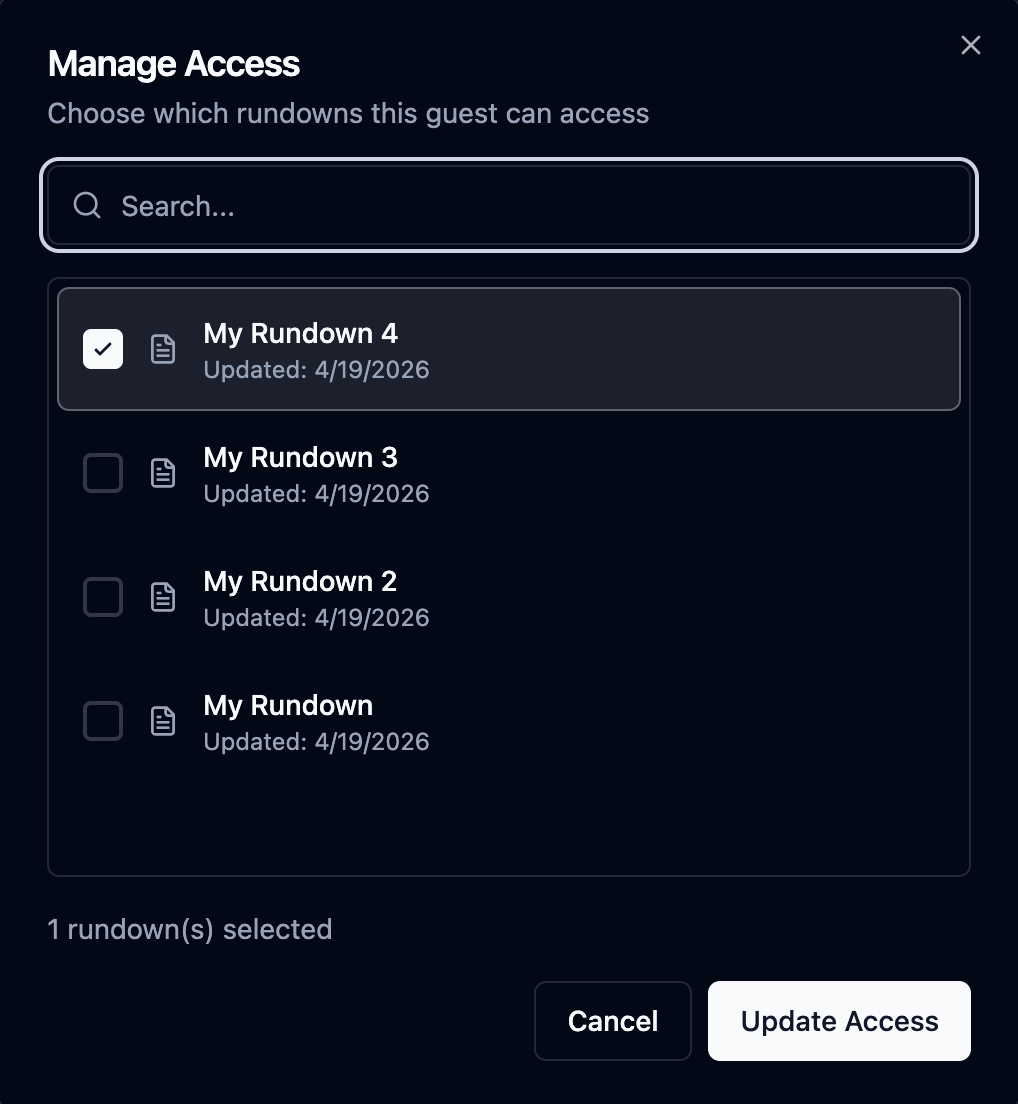
Invite a Guest and choose which rundowns they can access
Media Button in Toolbar
More Timezones
Performance & Stability
Shared Rundown Privacy Toggle
- Off by Default: New rundowns are created with sharing disabled. No one can access the shared link until you turn it on
- One-Click Toggle: Enable or disable the shared link at any time from the share menu dropdown
- Post-Show Lockdown: After your show wraps, toggle sharing off and anyone with the link will see a message that the rundown is no longer available. No rundown data is exposed
- Synced for All Users: The sharing status is consistent for everyone on the rundown. If one user turns it off, the link is disabled for all viewers
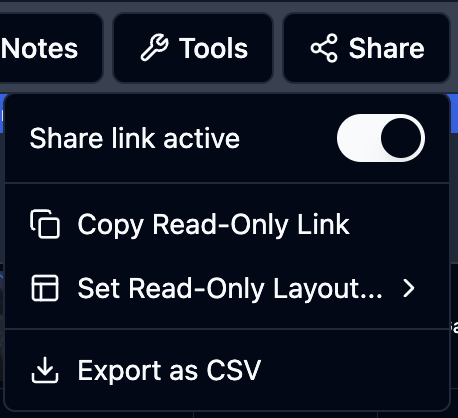
Share link active toggle in the share menu dropdown
Showcaller Overtime Mode
- Auto-Advance On (default): Segments advance automatically when time runs out, the same behavior as before
- Auto-Advance Off: The timer counts past zero into overtime, displaying +00:01, +00:02, etc. in red. The operator decides when to move on by clicking forward manually
- Synced Across Viewers: The setting is stored per-rundown and synced to all connected viewers, including the shared rundown view
- Smarter Over/Under on Jump: When using "Jump to Here" to skip to a different segment, the over/under timing display resets to zero at the new position instead of carrying over accumulated timing differences
Access the auto-advance toggle from the gear icon next to the playback controls in the showcaller toolbar.
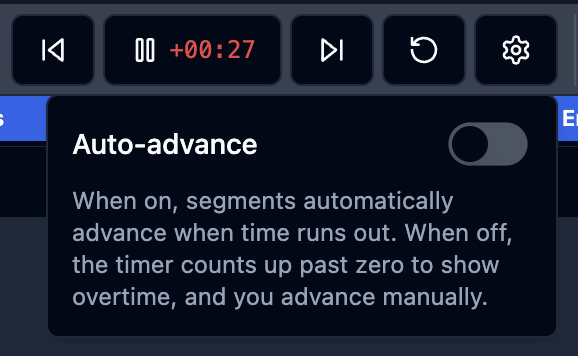
Auto-advance toggle in the showcaller settings with overtime timer display
8-Language Localization
- 8 Languages: English, Spanish, German, Arabic, Japanese, Korean, Russian, and Chinese
- Complete UI Translation: Every menu, button, tooltip, and help page is fully translated
- Arabic RTL Support: Full right-to-left text direction for Arabic speakers
- Shared Rundown Translation: Auto-translate shared rundown content and column headers for external stakeholders
- Instant Switching: Change your language anytime from Account Settings. No page reload required
Set your preferred language in Account Settings under the Profile tab.
Switching between languages with instant interface translation
Cue Cards
- Multiple Timer Modes: Countdown, count-up, and clock displays with configurable color thresholds and overtime indicators
- Text Cards: Display custom text on screen. Perfect for segment titles, talking points, or stage directions
- Message Overlay: Send real-time messages to the display that appear as an overlay on the active timer or card
- Shareable Viewer Link: Open the viewer on any screen. No login required, updates in real time
- Preview Mode: Stage changes privately before pushing them live with a split preview/live view
- Auto Take: Automatically advance to the next timer when the current countdown reaches zero
Access Cue Cards from the sidebar or navigate directly to Cue Cards. Learn more →
Cue Cards interface with countdown timer, text cards, and real-time viewer link
Bold & Italic Text Formatting
- Cmd/Ctrl+BToggle bold on selected text
- Cmd/Ctrl+IToggle italic on selected text
- You can also type the markers directly: wrap text with
**double asterisks**for bold,*single asterisks*for italic, or***triple asterisks***for both.
Formatting markers are visible while editing. When you click away, the text renders with the applied styling. Learn more →
Media Manager
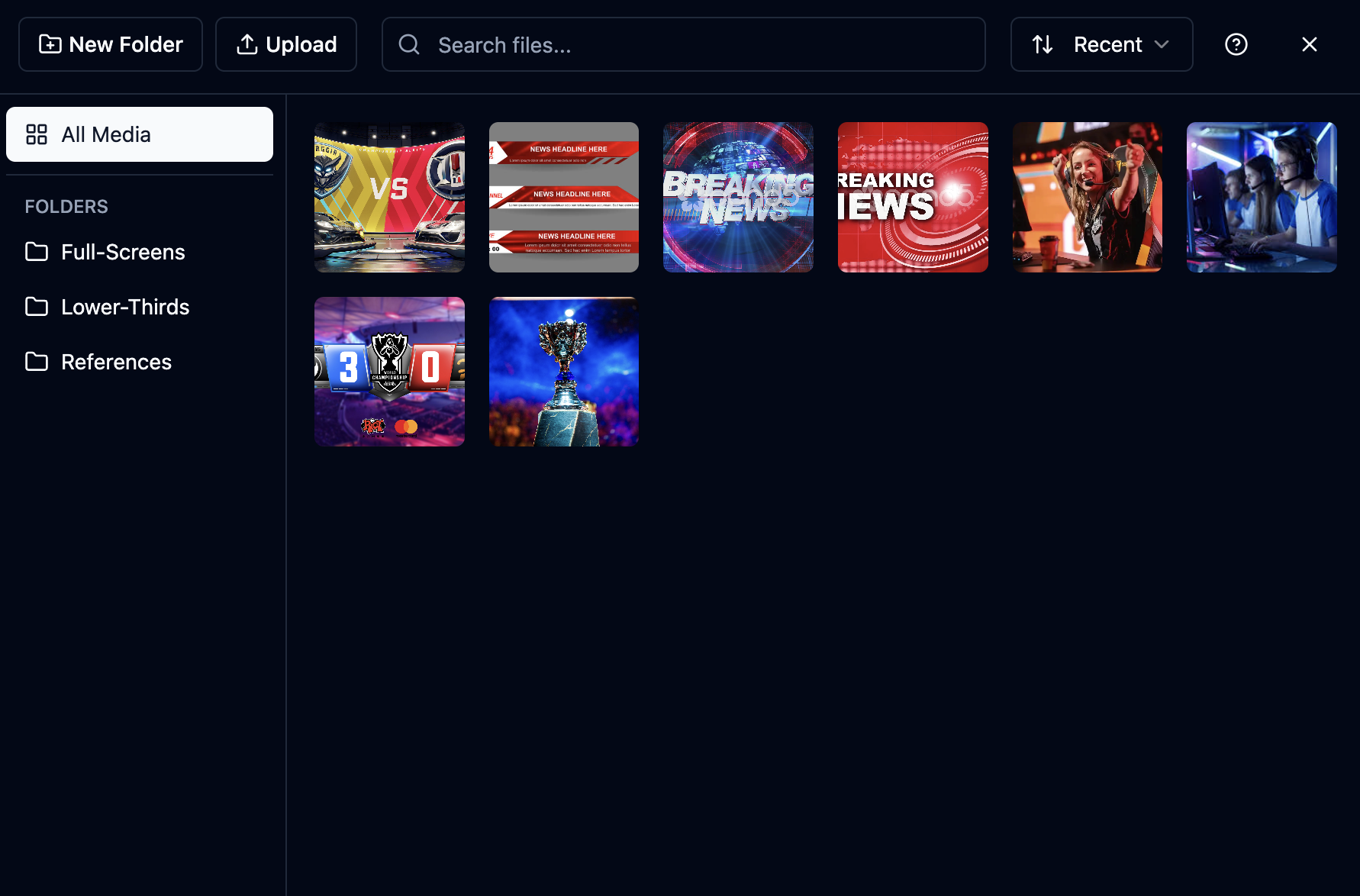
- Upload and organize media files into custom folders
- Search, sort, and filter your media library
- Drag and drop files between folders
- Double-click any image to quickly copy its URL
- Quick Look preview with spacebar
- Rename and delete files with ease
Access the Media Manager directly within rundowns to insert images. Learn more →
Header Navigation Shortcuts
- Shift+↑Jump to previous header
- Shift+↓Jump to next header
Smooth scrolling positions each header at 25% from the top of the viewport for optimal visibility.
Quick-Insert
- 10 Preset Slots: Configure up to 10 text presets with custom labels and optional colors
- Quick Insert: Press Alt + 0-9 (Windows) or Ctrl + 0-9 (Mac) to instantly insert styled text into any text field
- Color-Coded Badges: Add a background color to create visual badges, or leave without color for plain text insertion
- Access via Tools Menu: Find the Quick-Insert option in the Tools dropdown menu

Set up text presets with optional colors for quick keyboard insertion
Presence Avatars
- User Avatars: Colorful avatars show all users currently in the rundown
- Editing Indicators: A pencil icon appears when a user is actively editing a cell
- Click to Navigate: Click on an editing user's avatar to scroll directly to the cell they're working on
- Color-Coded: Each user gets a consistent color across their avatar and cell highlights

User presence avatar with editing indicator in the rundown header
Duplicate Rundowns Between Teams
- Duplicate to Team: Select any team you have access to from the rundown menu
- Seamless Transfer: All rundown content, columns, and settings are preserved
- Team Templates: Create standardized rundown templates and share them across teams
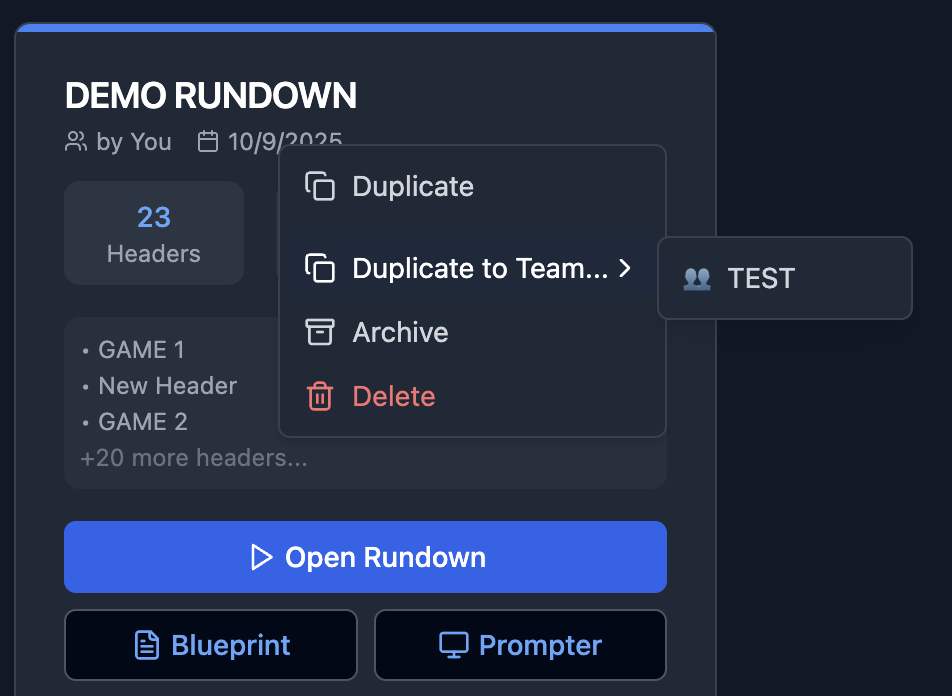
Duplicate rundowns to any team you're a member of
Custom Print Columns
- Select Columns: Choose exactly which columns to include when printing your rundown
- Always Include Row Numbers: The row number column is always included for reference
- Quick Selection: Use "Select All" and "Deselect All" buttons for fast column selection
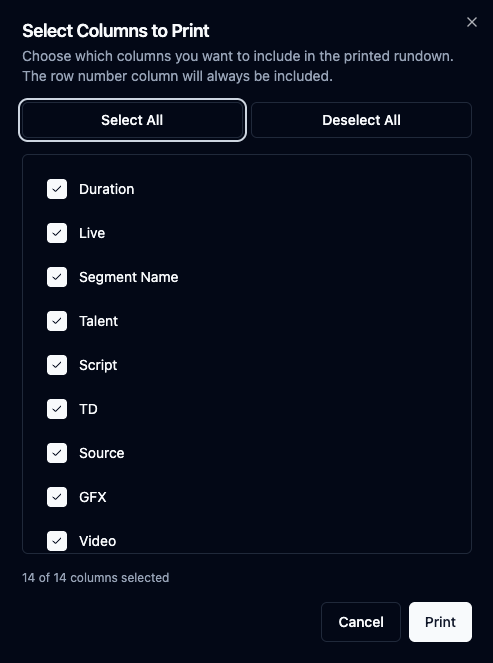
Choose which columns to include when printing your rundown
AI Rundown Summary
- Automated Content Summarization: AI reads through your entire rundown and generates detailed summaries for each segment
- Segment Breakdown: Get comprehensive descriptions of content flow, timing, and key elements for each show segment
- Production Overview: Clear summaries of show structure, pacing, and content organization to help with broadcast planning
- Time-Aware Summaries: Summaries include timing information and segment duration details for better show planning
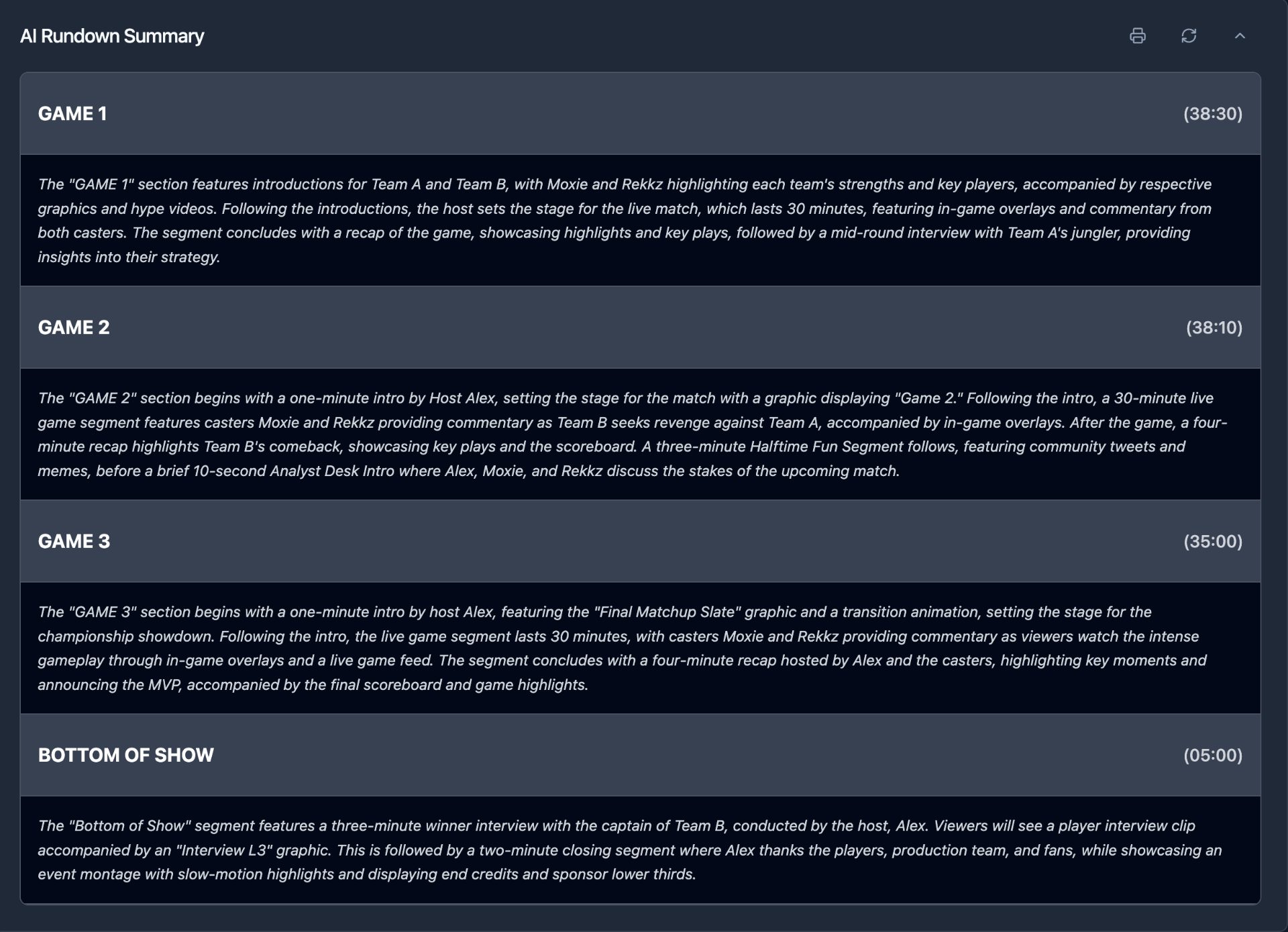
AI-generated rundown summary with detailed segment descriptions and timing information
Zoom Controls & Live User Presence
- Zoom In/Out Controls: New zoom controls allow you to adjust your rundown view for better readability and navigation
- Live User Presence: See who is currently editing the rundown in real-time with user names displayed during active editing sessions
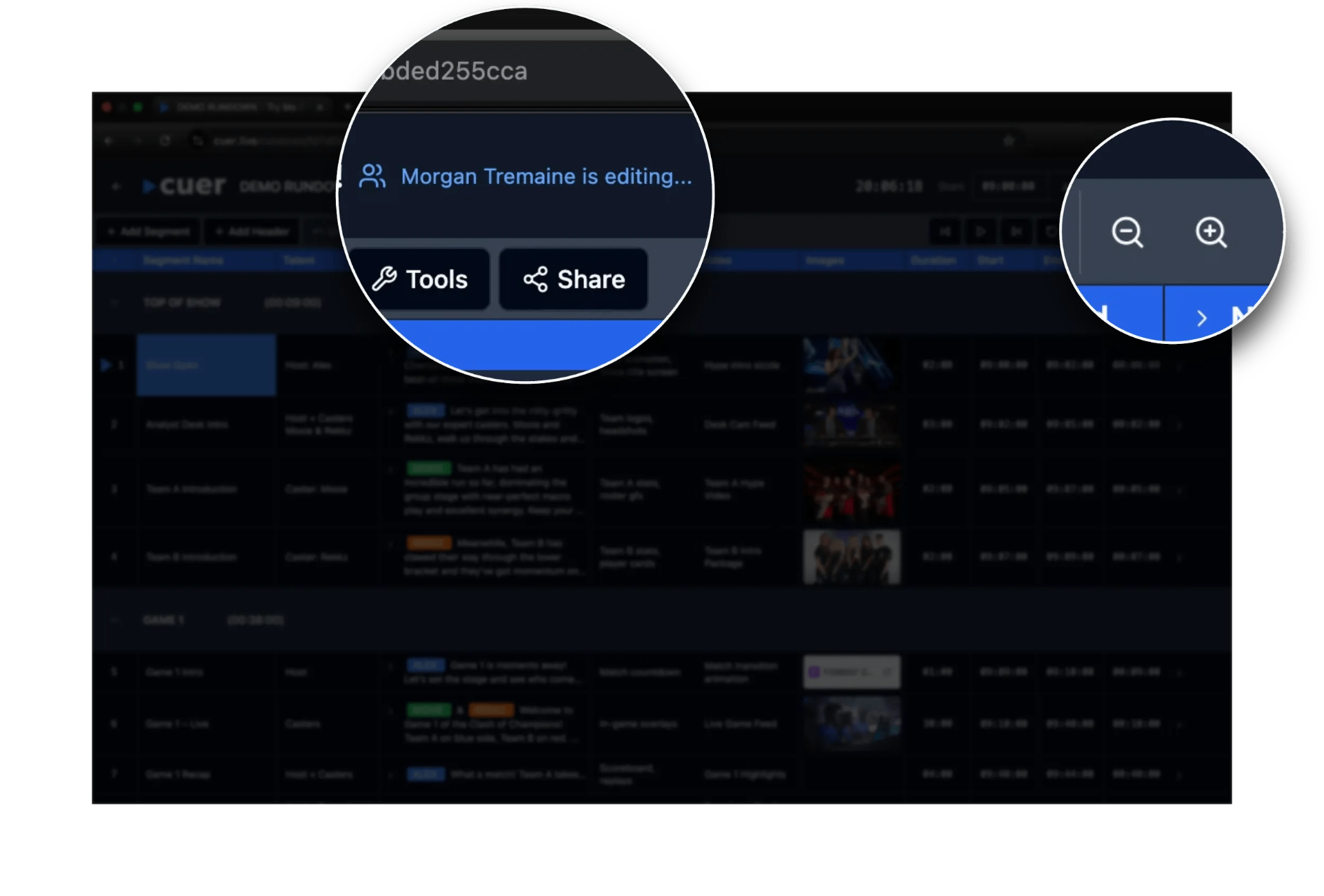
Enhanced collaboration features: zoom controls and real-time user presence
Auto Time to Script
- Single Row Timing: Right-click any row and select "Auto Time to Script" to automatically calculate duration based on script content
- Bulk Processing: Select multiple rows and apply timing calculations to all selected items at once
- Smart Calculations: Uses industry-standard reading speeds (150 words per minute) with automatic rounding to nearest 5-second intervals

Right-click context menu showing Auto Time to Script option
Find & Replace
- Global Search: Search across all text fields including names, scripts, talent, notes, and custom fields
- Smart Navigation: Navigate between matches with up/down arrows or Enter/Shift+Enter keyboard shortcuts
- Replace Options: Replace individual matches or all matches at once with dedicated "Replace" and "Replace All" buttons
- Case Preservation: Optional "Preserve case pattern" setting maintains original capitalization when replacing text

Find & Replace dialog with smart case preservation and batch operations
Enhanced Image Column Support
- Dropbox Integration: Direct support for Dropbox shared links - automatically converts sharing links to display images directly in the rundown
- Figma File Support: Smart detection and preview of Figma design files with clickable external link to open in Figma
- Auto Project Names: Figma files automatically extract and display the project name from the URL
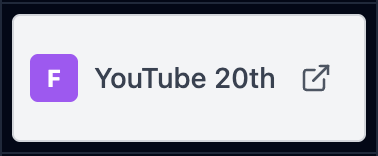
Example of Figma file integration with project name display
Collapsible Headers
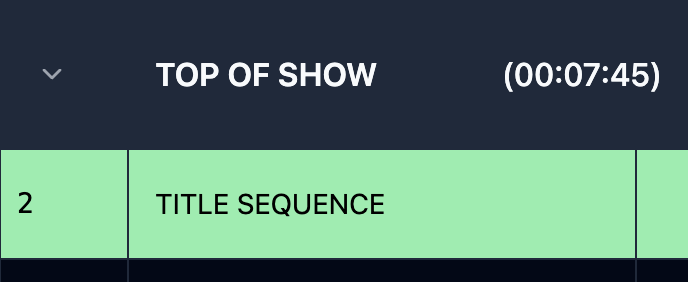
Example of collapsible rundown headers in action
More updates coming soon
We're continuously working on new features and improvements. Check back regularly.